
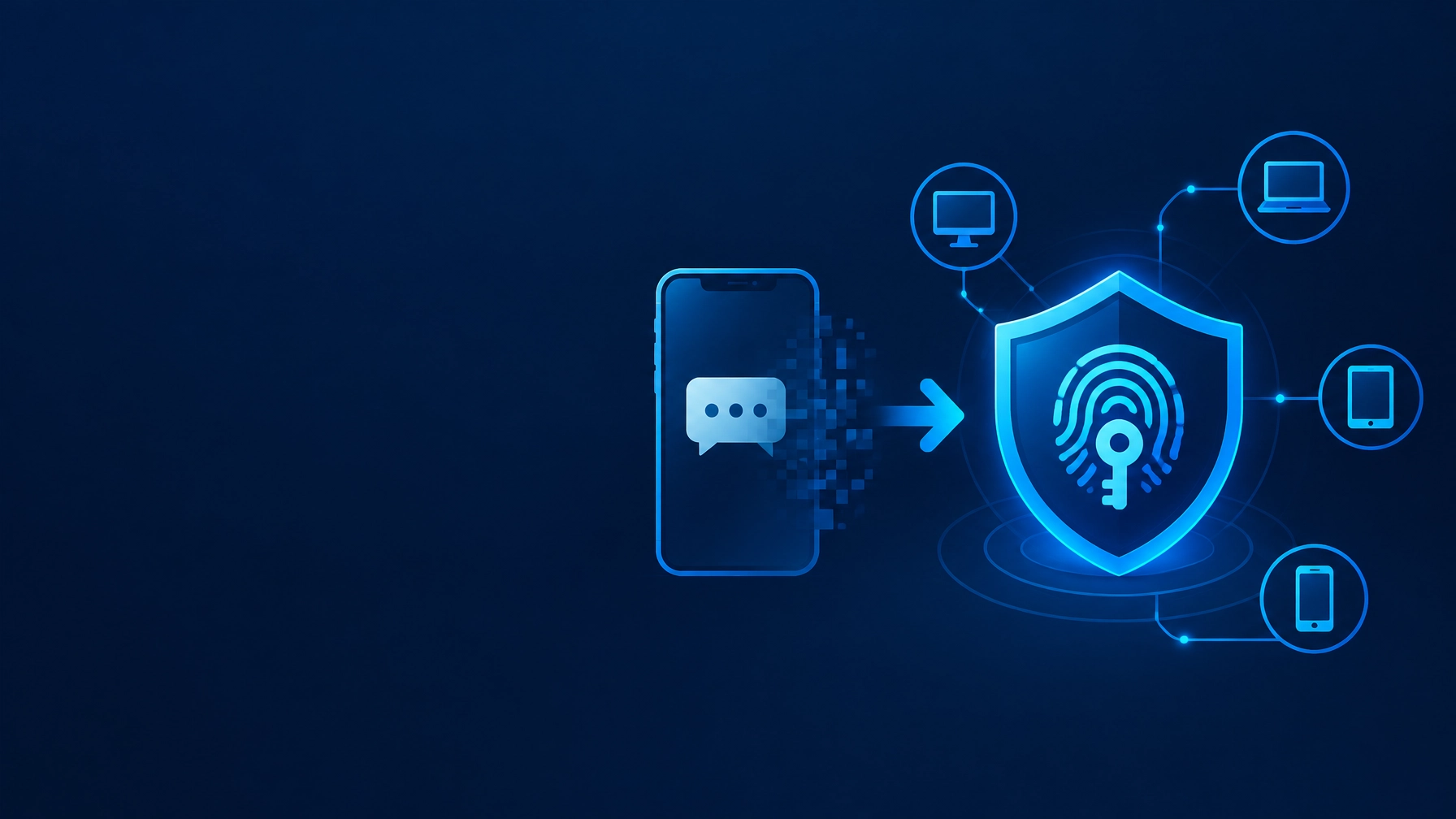
SMS multi-factor authentication feels simple: enter your password, receive a text, type the code. But a phone number is not a strong security boundary. Attackers may trick users into sharing codes, intercept messages, or exploit a transferred phone number. And if your team depends on SMS as its only backup, a change in provider policy can become a sign-in outage.
The deadline is real for some services, but not universal. Microsoft has begun its Entra passkey transition. Microsoft-provided SMS and voice authentication is scheduled to retire for most users on February 1, 2027, and for Global Administrators and external users on July 1, 2027. Google Workspace has not announced a universal SMS MFA retirement date as of October 9, 2026, but administrators can already enforce policies that exclude text and phone codes.
So don’t wait for a provider prompt, or for a slow Monday morning when nobody can access email. Use these five steps to plan a controlled migration. Your goal: stronger sign-in, working recovery options, and fewer business IT risks.
1. Find every account and person still relying on SMS
Start with a list, not a company-wide settings change. Identify which services use SMS for MFA, who uses it, and whether it is the only method on the account.
Include the accounts that can unlock other accounts: business email, Microsoft 365 or Google Workspace, payroll, banking, accounting, cloud storage, remote access, CRM, and administrator accounts. Ask your IT provider or platform administrator to check the authentication-method reports. Microsoft provides a process to find active SMS or voice users in an Entra tenant. Google Workspace administrators can track users’ 2-Step Verification enrollment.

- What to do: Record the service, user, current MFA method, account owner, and whether a recovery method is enrolled.
- Who owns it: Your business owner or operations lead sets the priority; your IT administrator or managed IT services provider gathers the technical details.
- Risk of skipping it: You miss a dormant administrator, shared account, or key employee who has no alternative sign-in method, and discover the gap during an emergency.
Put administrators, finance staff, executives, and anyone with access to sensitive records at the top of the list. These accounts can create an enormous disruption if locked or compromised.
2. Choose a replacement that matches the risk
Avoid treating every option as equally strong. A passkey or FIDO2 security key is designed to resist phishing: the sign-in is tied to the legitimate service, making it harder for a user to approve access on a fake site. For administrator and high-impact accounts, make these your preferred choices where supported.
An authenticator app that generates one-time codes is a useful step up from SMS in many situations, but the codes can still be phished. Push notifications can also be abused if users approve prompts they did not start. Where supported, turn on number matching and train staff to deny unexpected requests.

- What to do: Set a standard: passkeys or security keys for high-risk users; an approved authenticator app where passkeys are not yet practical; SMS only as a short-term fallback with a documented removal plan.
- Who owns it: The business owner approves the policy; the IT administrator or provider confirms what each business application supports.
- Risk of skipping it: Staff pick inconsistent methods, privileged accounts remain on the weakest option, and your “upgrade” may still leave users exposed to phishing.
Microsoft’s Entra SMS and voice retirement guidance describes passkeys as phishing-resistant and gives the timeline for Microsoft-provided SMS and voice. CISA also recommends organizations plan to move toward FIDO/WebAuthn authentication; its MFA guidance notes that number matching can help when phishing-resistant MFA is not yet in place.
3. Enroll users and build a safe recovery route
A new sign-in method is only useful if the employee can actually use it, and recover access when a phone is lost, replaced, or damaged. Enroll users before you remove SMS. For important accounts, set up a second approved method, such as another registered device or a managed security key, and document the recovery process.
Do not treat a shared phone number, an unprotected spreadsheet of backup codes, or an informal message to a coworker as a recovery plan. Keep recovery details under appropriate access controls. Check that administrator accounts have a separate, tested route back in, too.
- What to do: Enroll each user in the chosen MFA method; test a sign-in and recovery process; securely record who can approve account recovery.
- Who owns it: IT support coordinates enrollment and testing; managers give employees time to complete it; each employee confirms their own sign-in works.
- Risk of skipping it: A lost phone or staff departure turns routine access into account lockout, delayed work, and urgent technical support.
For Google Workspace, review Google’s 2-Step Verification deployment guidance. It advises administrators to communicate the change, track enrollment, and warn users before enforcing a method that excludes text or phone codes.
4. Pilot the change before rolling it out
Test your plan with a small, representative group first: an administrator, a manager, a remote employee, and someone who uses the systems most important to daily operations. Include different devices and work locations. Confirm that sign-in works on a replacement phone or laptop and that the help process is clear.
Then communicate the timeline in plain language. Tell users what is changing, what to set up, how to ask for help, and the date SMS will stop being accepted. Keep SMS available during a brief, controlled transition if your provider allows it, but don’t leave the fallback in place indefinitely.

- What to do: Run the pilot, record issues, adjust instructions, and set a cutover date after successful testing.
- Who owns it: Your IT administrator or managed IT services provider runs the pilot; department leads confirm that essential work still gets done.
- Risk of skipping it: A company-wide change can lock out multiple employees at once, interrupt customer service, or delay time-sensitive work.
A small pilot is not bureaucracy. It is a practical way to catch confusing prompts, device gaps, and forgotten service accounts before they become a company-wide problem.
5. Remove SMS deliberately and verify the result
Once users have working alternatives, update the MFA policies for each service. Remove SMS as a routine sign-in method where your systems allow it. Then check enrollment reports, test critical accounts, and confirm there are no employees relying on SMS alone.
For Microsoft Entra customers, most users need a plan ahead of February 1, 2027; Global Administrators and external users have a later July 1, 2027 deadline. Don’t assume that the later date applies to every guest or account type: Microsoft distinguishes internal guest users in its timeline. For Google Workspace, don’t plan around a made-up retirement date: use available enrollment and enforcement controls, and verify the policy will not lock out users who have not enrolled in an alternative.
- What to do: Apply the new policy in stages, review enrollment status, test administrator access, and schedule a regular review for new accounts and employees.
- Who owns it: The IT administrator or provider makes the technical changes; the business owner approves the cutover and accepts any documented exception.
- Risk of skipping it: SMS remains the easy default, policy gaps persist, or enforcement is switched on before users are ready.
This is where reliable IT support for small business can make a difference: a clear migration plan ties each setting to a user, service, owner, and test. If your team needs help managing the broader rollout, see PWP SYSTEMS’ managed IT services.
Make the move before sign-in becomes an emergency
You do not need to overhaul every account in one afternoon. You do need an owner, an inventory, a chosen replacement, and a date for testing and removal. Moving from SMS to passkeys or security keys, using an authenticator app as an interim option where appropriate, reduces reliance on a channel that is more vulnerable to interception and social engineering.
Estimate the business impact of an outage with the IT Downtime Cost Calculator (live link pending). If your team is also evaluating unapproved AI use, review the Shadow AI Risk Self-Assessment (live link pending).
PWP SYSTEMS clients can use the client/member portal to access support and manage service requests. The Remote Team Security Checklist is available inside the member portal to help you review security practices across remote and hybrid work. Be prepared. Keep your team working.
Sonny’s companion cheat sheet
Topic: Move business accounts off SMS MFA
Core message: Don’t wait for a sign-in disruption. Inventory SMS use, select stronger options, enroll and test users, then remove SMS in a controlled rollout.
Audience: Small-business owners, CEOs, operations leads, and remote teams
Five-step summary
- Inventory services, users, and SMS-only accounts.
- Choose passkeys/security keys for high-risk users; use approved authenticator apps where needed.
- Enroll users and document secure recovery.
- Pilot the change and communicate the deadline.
- Remove SMS in stages and verify enrollment.
Social caption:
Still using text messages to protect business logins? Start your MFA migration before a provider deadline or account lockout forces the issue. Our five-step guide covers the inventory, replacement methods, user enrollment, pilot, and SMS cutover. Microsoft Entra’s retirement dates are approaching; Google Workspace has not announced a universal SMS retirement date. Get the practical plan, and check out the Remote Team Security Checklist in the PWP SYSTEMS member portal.
Suggested carousel:
- Still using SMS MFA? Start here.
- Inventory every service and SMS-only user.
- Prioritize passkeys or security keys for high-risk accounts.
- Enroll users and test account recovery.
- Pilot before company-wide changes.
- Remove SMS only after alternatives work.
- Read the full guide; access the Remote Team Security Checklist in the member portal.
Visual direction: Use PWP SYSTEMS’ navy-and-blue security palette. Highlight “Inventory → Enroll → Pilot → Remove SMS.” Avoid suggesting that every provider has the same retirement date.
